How to Make the Quavo Hotel Lobby AI Video with Higgsfield
Make the viral Quavo and Takeoff Hotel Lobby AI video with Higgsfield Genjutsu. Follow the steps, add two character photos, and copy the prompt.
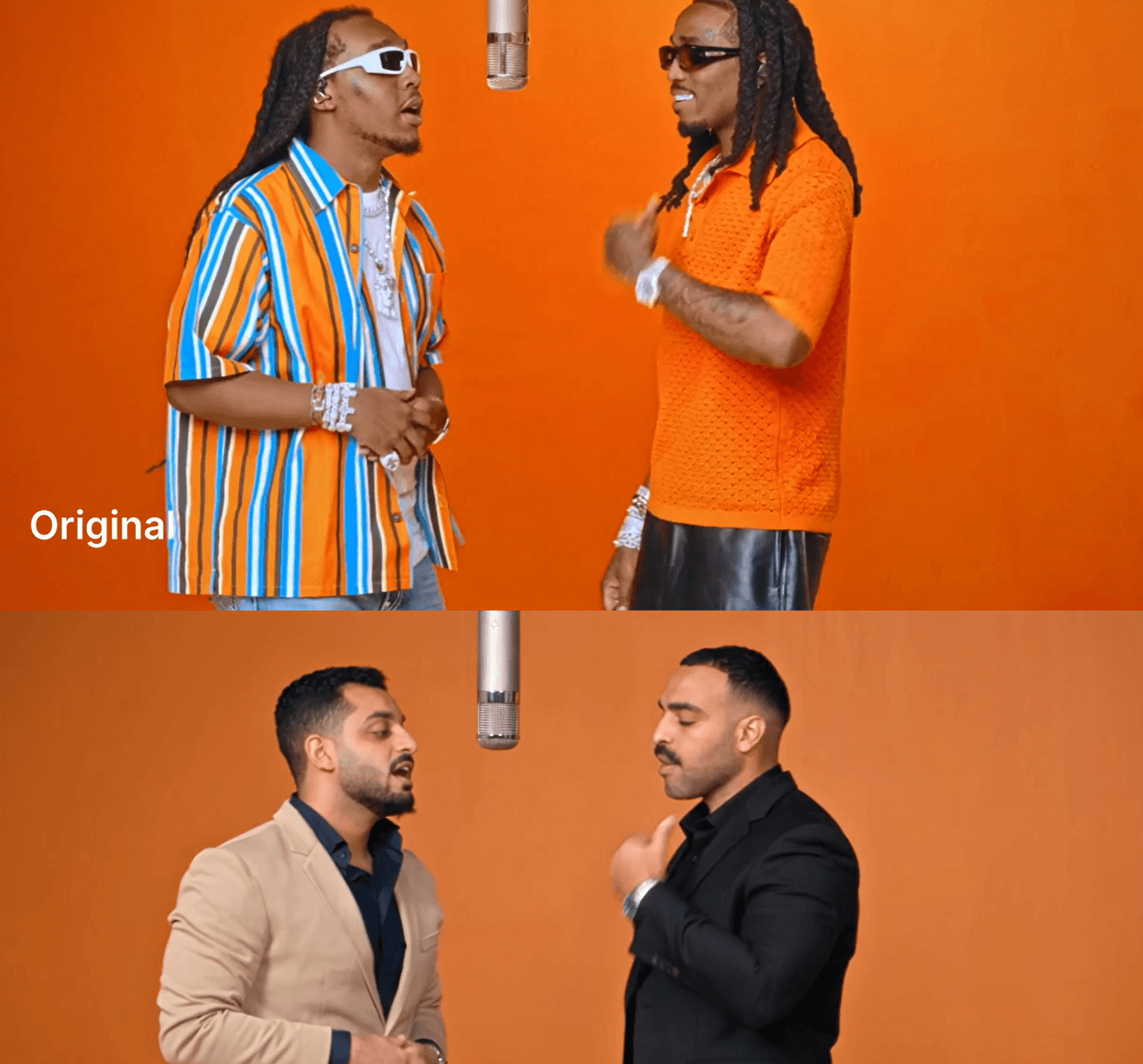
A Viral Quavo Video
Want to make the viral Quavo and Takeoff Hotel Lobby AI video with your own characters? This guide shows how to use Higgsfield Genjutsu to put two people into the orange performance scene. You'll need a 19-second reference clip and two character photos. The beige-suit character goes on the left; the black-suit character goes on the right.
What is the Hotel Lobby AI video trend?
The trend draws on Quavo and Takeoff's Hotel Lobby performance for A COLORS SHOW. Creators replace the two performers while using the orange studio scene and performance as their reference. Higgsfield Genjutsu offers a Motion transfer option for working from a reference video.
What you need
- Your 19-second Hotel Lobby reference video, with its original audio.
- One clear photo of the person in the beige suit.
- One clear photo of the person in the black suit.
How to make the Quavo Hotel Lobby AI video in Higgsfield
- Sign up for Higgsfield. Open Higgsfield using my link.
- Open Video. Select Video from the top menu.

- Choose Higgsfield Genjutsu. Find it in the Models list, then select Motion transfer.

- Upload the reference video. Use your 19-second Hotel Lobby clip for the performance, orange backdrop, and timing.

- Upload your two characters. Add the beige-suit and black-suit photos. Use the photos for the people only, not their backgrounds.

- Turn on Prompt. Switch on the Prompt toggle in Genjutsu.
- Paste this prompt. Select the three uploaded references with @ in Higgsfield so each mention points to the correct file:
Use @HotelLobbyVideo for the full 19-second scene, camera movement, performance timing, orange background, and original audio. Replace the left performer with @firstCharacter and the right performer with @secondCharacter. Use the character photos only for each person's face, body, and clothing. Ignore their photo backgrounds and framing. Keep the original song audio exactly as uploaded, with no changes or regenerated sound.
- Generate and review. Check that the beige suit appears on the left, the black suit appears on the right, and the original song audio is preserved. If the generated audio differs, replace it with the original clip's audio in your video editor.
Quick questions
What song is used in the viral Quavo AI video?
It's Hotel Lobby by Quavo and Takeoff, also known as Unc & Phew. This guide refers to their A COLORS SHOW performance.
Can I use different people?
Yes. Upload two clear character photos and update the left and right @ references in the prompt to match your files.
Will the prompt keep the original audio?
The prompt asks Genjutsu to keep it. Listen to the result before posting, and use the original clip's audio track in an editor if needed.
Follow @salama_win for practical AI updates without the hype.
Stay ahead of the curve
Join my private newsletter for exclusive insights, tools, and thoughts straight to your inbox. No spam, just value.